What is a bin location?
A bin location is the exact place in your storage where a product is kept: not just “the back room” but “Shelf A, bin 7”, usually written as a short code like A7. Every product (SKU) has one or more bin locations, and every bin has a label.
Why bin locations matter
- Faster picking. Pickers walk straight to the bin instead of searching.
- Fewer mistakes. Similar products are separated by location, not by memory.
- Anyone can pick. A helper on their first day can follow the locations.
- Stock you can trust. Counting per bin shows exactly where stock is running low.
How to name your bins
Keep codes short, unique and in walking order. For most small stockrooms, a letter for the shelf and a number for the bin is enough: A1, A2, A3. Number along each row in the direction you walk. Add a row number (A-2-04) only if your racks are tall and dense.
How to assign products to bins
- List your products with their SKUs (your store can export them).
- Decide a home for each one, best sellers closest to packing.
- Record the SKU against the bin label.
- Label the physical bin so the code is visible.
- Update the record whenever you move stock.
One product in several bins
It’s fine to keep a product in two places, such as an open bin plus overflow stock higher up. Just record both locations and pick from the closest one first.
Visual bin locations
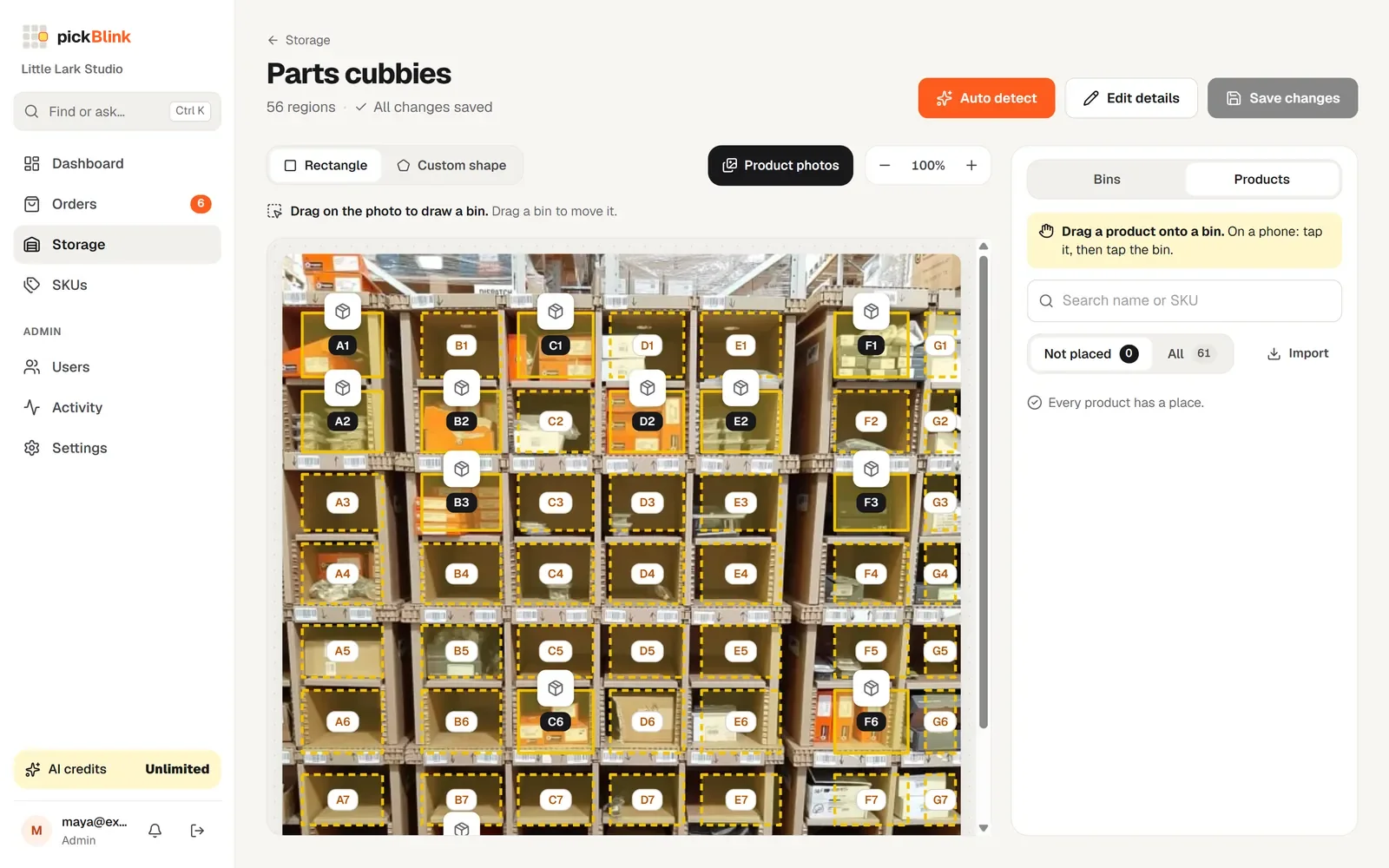
Codes still need translating into a place. A visual approach skips that step: take a photo of the shelf and mark each bin on it. In pickBlink, AI marks and labels the bins on your photo, you drag each product onto its bin, and when an order comes in the bins light up on the photo.
Ready to map your own shelves? Start a free trial or read how to organise a stockroom for faster picking.